Using Web Inspector developer tool with Safari
Even though Safari makes a perfect platform for web development due to the strict standard policies practiced by WebKit core developers, you still can't do without developer tools on it. While Mozilla Firefox has a superb Firebug extension, WebKit has Web Inspector.
UPDATE: now you can just go to Preferences > Advanced and tick the Show Develop Menu in menu bar checkbox:

Many thanks for this to Mark Rowe from Apple!
For past WebKit nightlies Web Inspector was turned on by default. But from some point developers decided to turn it off for regular users so there's a bit of configuration you've got to get done now (it also concerns Safari 3 users):
- Open Terminal from Applications > Utilities
- Type in a command to activate Web Inspector:
defaults write com.apple.Safari WebKitDeveloperExtras -bool true
- Restart Safari/WebKit
- Right-click on a page somewhere and choose Inspect Element
-
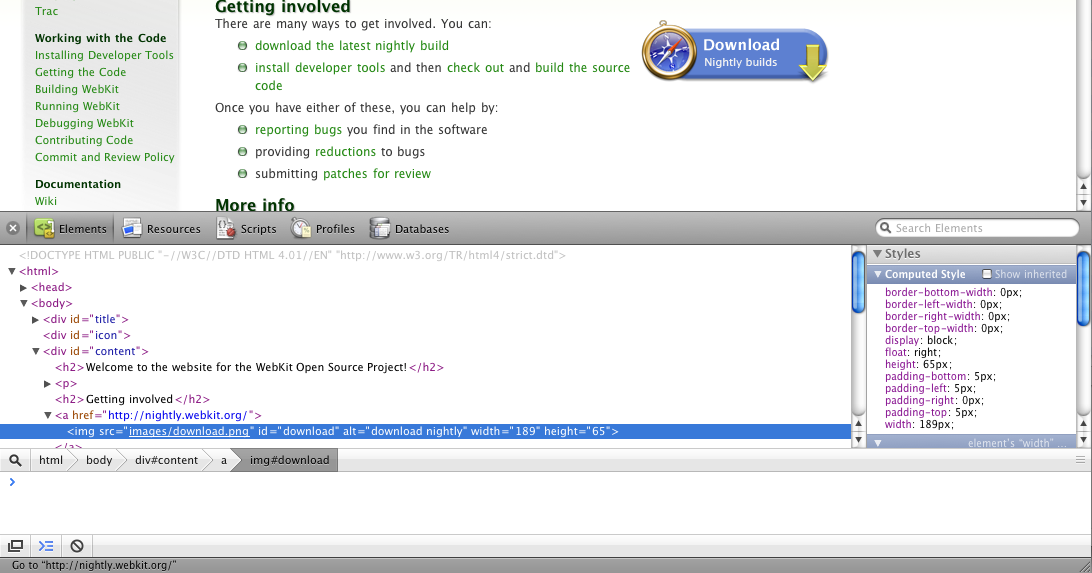
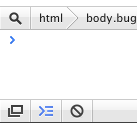
Web Inspector will start up. You can locate the scope of your clicked element within the code, CSS definitions on the right side and a Console button in the bottom-left corner of the Inspector (the one highlighted on the image below):
- If you've got it all right, Web Inspector should look like this (click to zoom):